LIVE CAMERA DIRECTION FOR BANDS

Call every shot right on the beat.

ShotCaller follows the band's timecode, counts you down to every planned cut, shows your notes, and can switch the vision mixer for you, so you can direct the show instead of chasing it.

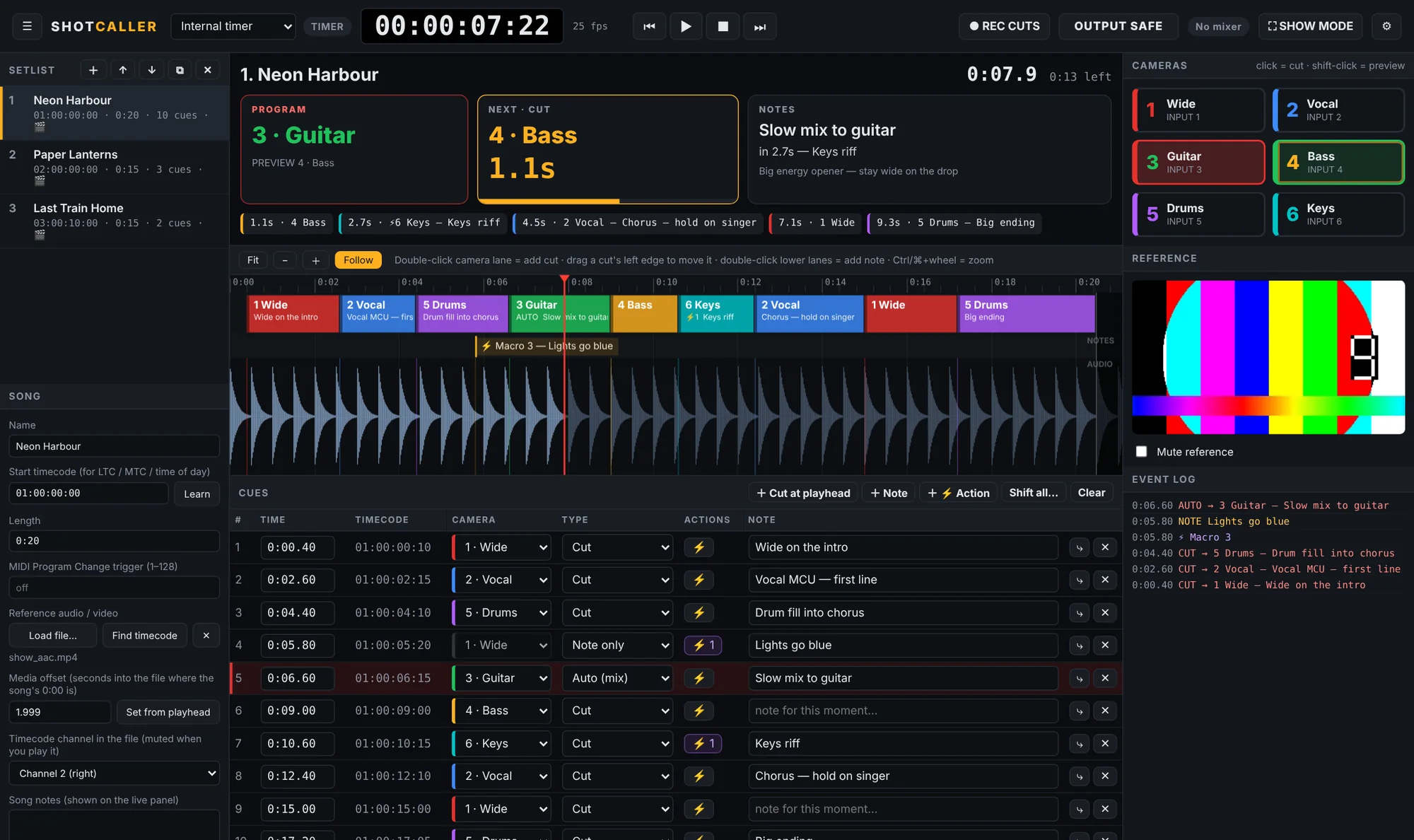
The ShotCaller editor: setlist, live program and next-cut panels, a timeline of colour-coded camera shots over the song's waveform, and the cue list.
HOW IT WORKS

Sync. Plan. Run.

Build your shot list once against a recording of the set. On the night, the band's own timecode drives everything.

01 · SYNC

Lock to the band

Take LTC from an audio input or MIDI timecode from the playback rig. Each song is picked out automatically as its timecode arrives. Rehearsing? Use the built-in timer.

02 · PLAN

Block every cut

Load a reference video or track, then tap camera keys along with it. Every press becomes a frame-accurate cue. Add notes for the moments that matter.

03 · RUN

Let it call the show

Big on-air and next-camera panels count you down to every cut. Hand it the vision mixer and ShotCaller makes the cuts itself, bang on time.

SHOW MODE

Everything you need, readable from across the room.

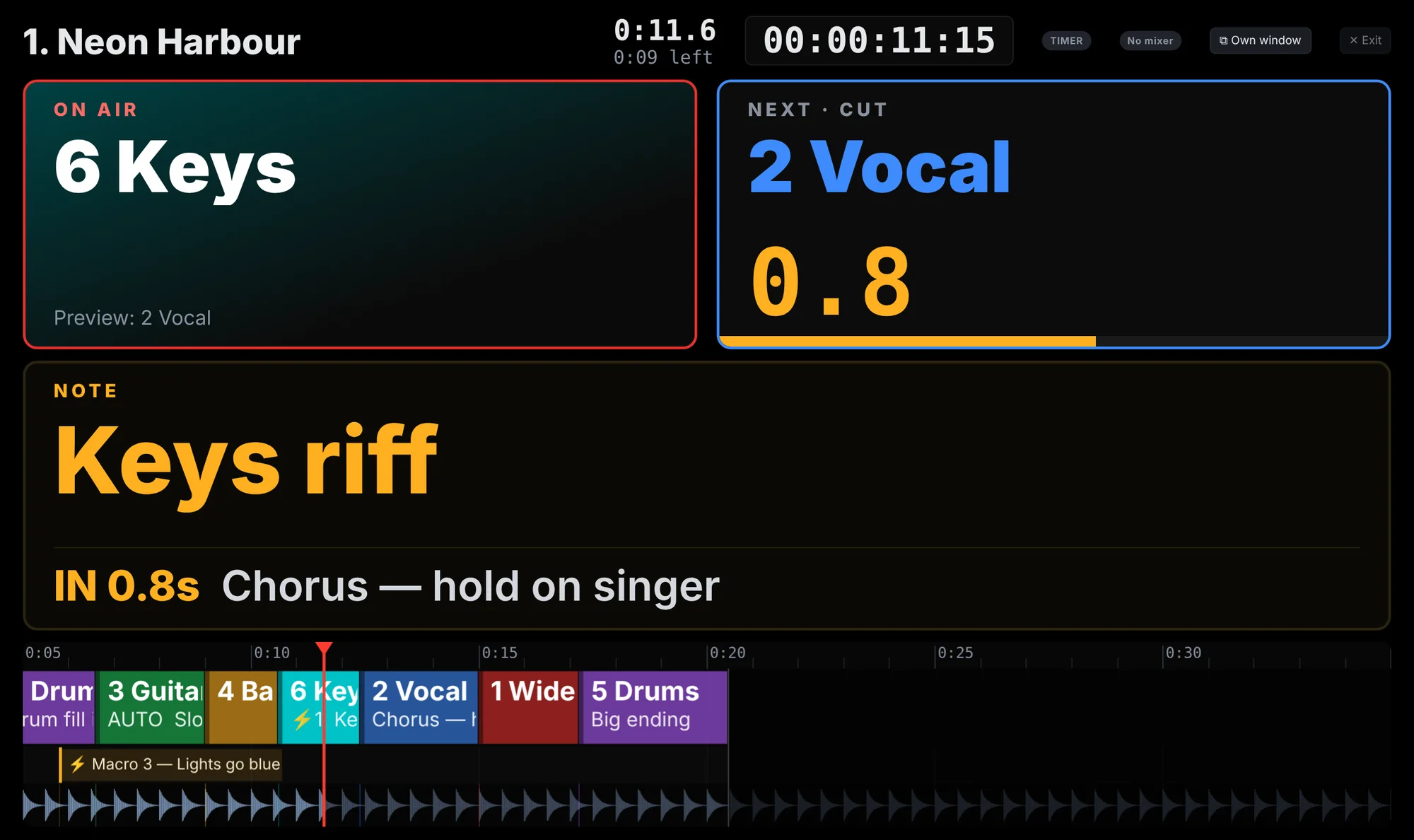
One key turns the screen into a full-screen show view: what's on air, what's next, a big countdown and your notes, all sized to read at a glance. With a second screen connected, show mode opens there and you keep the editor on your laptop.

  • On-air camera with live tally from the mixer
  • Countdown that flashes before every cut
  • Notes sized to fill the space, plus what's coming up
Show mode: the on-air camera, the next camera with a large countdown, the current note in big amber text and a scrolling timeline.
TIMECODE SPLITTING

Drop in the whole show. Get every song.

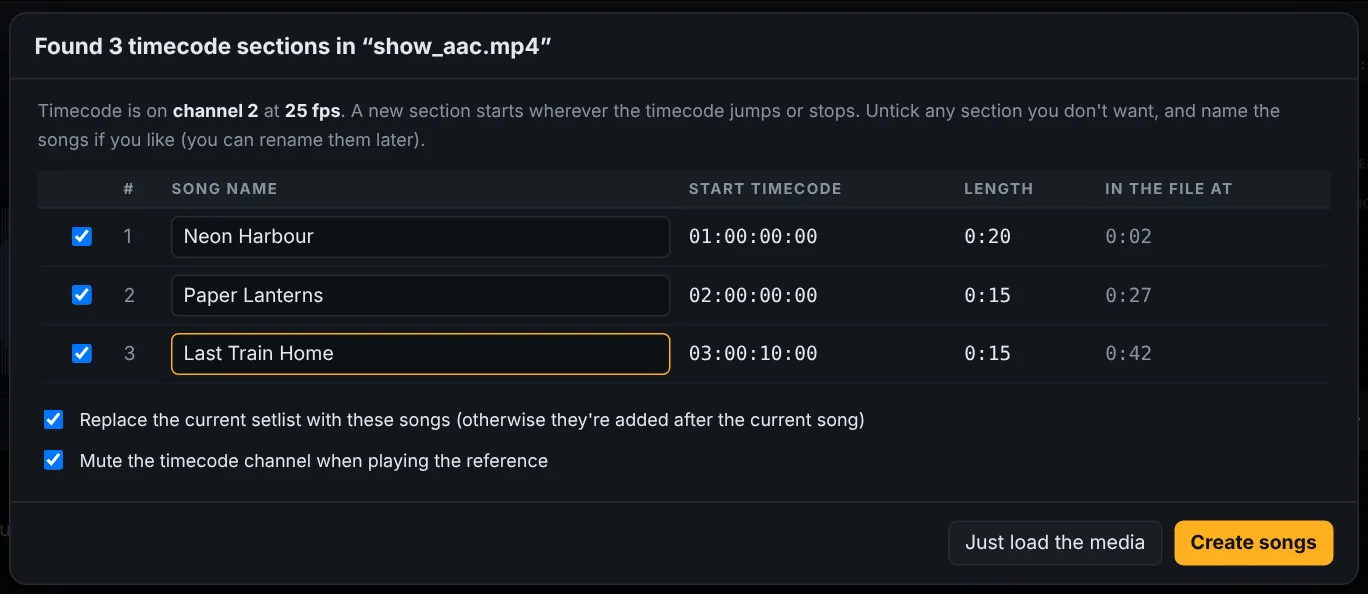
Given a recording of the full set with timecode on one audio channel? ShotCaller reads it, finds where each song starts, stops or jumps, and builds your setlist with every song already lined up to its part of the recording.

  • Works with MP4, MOV, WAV, MP3 and more, even very long recordings
  • Short timecode dropouts are ignored
  • The timecode channel is muted on playback, so you only hear the band
Dialog showing three timecode sections found in a show recording, each ready to become a song.
ACTIONS

Not just cuts: PTZ moves, decks, keys, macros.

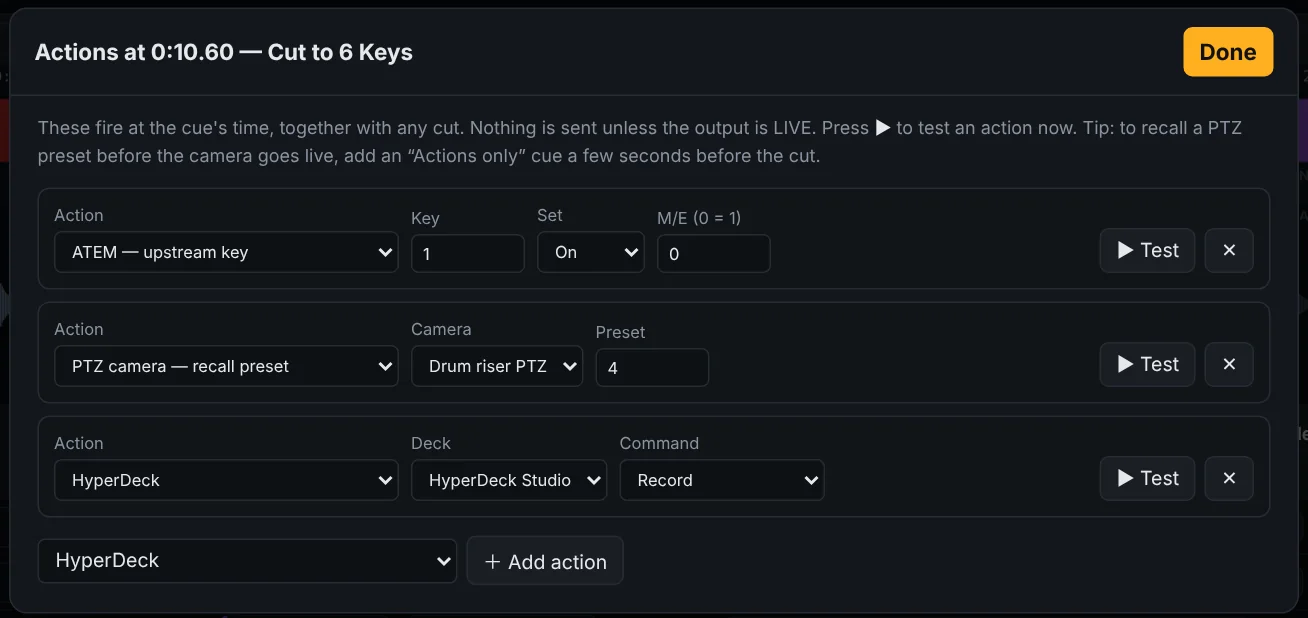
Any cue can fire extra actions at the same moment as its cut. Pre-position a PTZ camera a few seconds before it goes live, start a HyperDeck recording, bring on a lower third or trigger a lighting cue.

  • PTZ preset recall: VISCA over IP, PTZOptics, Panasonic AW and others
  • HyperDeck play, stop, record and clip control
  • ATEM keys, DSK, macros, aux and stills, plus OSC, HTTP and MIDI
Action editor with an upstream key, a PTZ preset recall and a HyperDeck record command on one cue.
ALSO INSIDE

Built for the gig, not the edit suite.

⏱

Frame-accurate timing

Cues snap to frames at 24, 25, 29.97 or 30 fps, with latency compensation if your network adds a delay.

🛟

Rehearse safely

Nothing reaches the mixer until you switch the output to LIVE. Rehearse the whole show with the mixer untouched.

🎹

MIDI song triggers

Give a song a Program Change number and the band's rig can call it up and start it.

⚡

Record as you watch

Turn on REC CUTS, play the song and tap camera keys. Your shot list writes itself.

📄

Cue sheets

Export every cue with its timecode, camera and note as a spreadsheet for your camera operators.

💾

Everything saves itself

Projects and reference media save automatically. Export a project file to back it up or move it to another computer.

VISION MIXERS

Works with the switcher you have.

Direct control, built in. No extra software to install.

Blackmagic ATEMCuts, auto transitions, preview, live tally, plus keys, macros, aux and stills
vMixCuts, previews, fades and live tally, plus any vMix function
OBS StudioEach camera switches to its own scene. Studio Mode adds preview and transitions.
Ross Carbonite, Graphite, AcuityProgram, preset, cut and auto on the ME you choose, using RossTalk
Roland V-160HD familyV-160HD, V-80HD, VR-120HD, VR-6HD and V-1-4K over LAN
Everything elseTriCaster, Panasonic, Sony and more through Bitfocus Companion, or MIDI
DOWNLOAD

Get ShotCaller

Released . Install it and you're ready: mixer and device control are built in.

MacDESKTOP APP

For Macs with Apple Silicon (M1 and newer), on a recent version of macOS.

Download for Mac
.dmg installer · drag ShotCaller into Applications
WindowsDESKTOP APP

For Windows 10 and 11 (64-bit).

Download for Windows
.exe installer
Browser version

Runs in Chrome or Edge on any computer, including Intel Macs. Mixer control needs Node.js and the included launcher.

Download .zip
Setup steps are in “READ ME FIRST” inside the zip
Opening ShotCaller for the first time
  1. Mac: if macOS says it “could not verify” ShotCaller, click Done. Then open System Settings → Privacy & Security, scroll down and press Open Anyway. You only need to do this once.
  2. Windows: if you see “Windows protected your PC”, click More info → Run anyway.
FAQ

Questions

Do I need a vision mixer to use it?

No. Without one, ShotCaller works as a shot-calling screen: it follows the music, counts down to every cut and shows your notes while you or an operator switch by hand. Connect a mixer whenever you want it to make the cuts itself.

How does it connect to my ATEM?

Over the network, with an Ethernet cable between the ATEM and your computer, or through a switch. USB on an ATEM Mini is only used for its webcam output and the ATEM Setup utility, so it can't be used for switching. The guide shows how to set it up with one cable.

What timecode does it accept?

SMPTE LTC through any audio input, and MIDI timecode (MTC) through a MIDI interface or network MIDI, at 24, 25, 29.97 drop-frame or 30 fps. It can also follow the computer's clock for shows that run to a schedule, or use its own timer for rehearsals.

Which Mac do I need?

The Mac app is for Apple Silicon Macs (M1 and newer). To check, open the Apple menu → About This Mac: it should say “Apple M…”. On an older Intel Mac, use the browser version.

Where are my projects saved?

On your computer, inside ShotCaller, together with any reference media you've loaded. Use Export on the projects page to back a project up or move it to another computer. Media files aren't included in the export, so you'll need to load them again there.

Does it need the internet?

No. Once it's installed, ShotCaller works entirely on your local network, which is what you want at a venue.

Something's not working?

Check the troubleshooting section of the guide first. If you're still stuck, email .